Understanding WhatsApp Web
In today’s fast-paced digital environment, effective communication has never been more essential. WhatsApp Web serves as a powerful extension of the popular messaging app, allowing users to seamlessly transition from mobile devices to desktops. This functionality empowers users to manage conversations more effectively, utilizing larger screens and physical keyboards to enhance their experience. With its range of features and robust security protocols, WhatsApp Web stands out as a must-have tool for both personal and professional communication.
What Is WhatsApp Web?
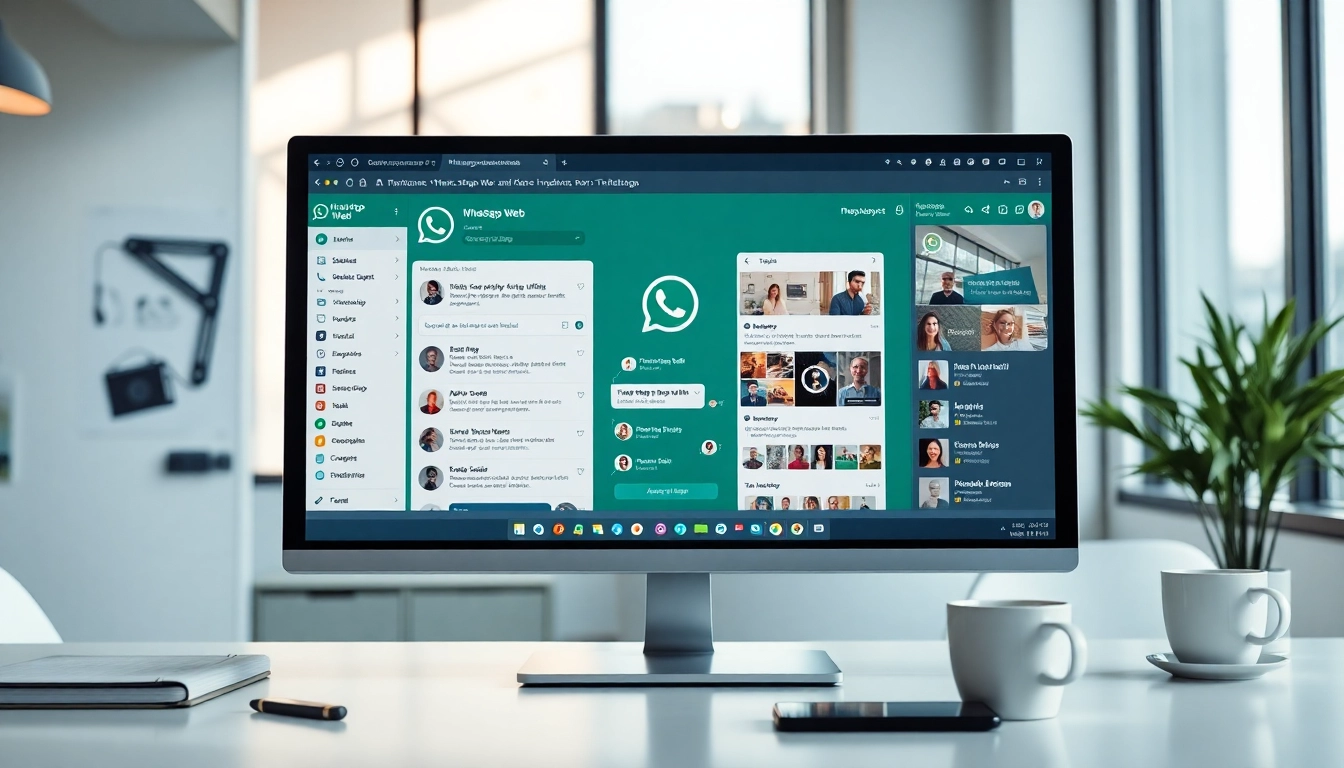
WhatsApp Web is the browser-based version of WhatsApp that allows users to send and receive messages directly from their computer. By mirroring the conversations and messages from the mobile app, WhatsApp Web facilitates an efficient communication channel for users who prefer typing on a keyboard and utilizing a larger display. Whether you need to respond to an urgent message during work hours or share media files quickly, this platform simplifies the process.
How WhatsApp Web Complements Mobile Usage
WhatsApp Web complements mobile usage by providing a larger interface for communication. It not only retains all the core functionalities of its mobile counterpart but also enables features that enhance user experience, such as keyboard shortcuts, quick file sharing, and efficient browsing. This synergy between mobile and web versions ensures users never miss out on important messages, regardless of the device they are using.
Key Features Overview
Some key features of WhatsApp Web include:
- Multi-platform Synchronization: Messages and notifications are synchronized across devices in real-time.
- Rich Media Sharing: Users can seamlessly send images, videos, and documents directly from their computer.
- Video Calling Capability: Engage in video calls directly through the web interface, maintaining visual and emotional connections.
- Keyboard Input: Take advantage of the physical keyboard for faster and more accurate typing.
The Advantages of Using WhatsApp Web
Enhanced Communication Efficiency
One of the primary advantages of using WhatsApp Web is the increase in communication efficiency. Users can handle multiple conversations simultaneously without the limitations of a mobile device. The larger screen and keyboard allow for quicker typing and navigation, which is particularly beneficial in a professional setting. Whether you’re drafting detailed responses or managing group chats, WhatsApp Web simplifies multitasking.
Accessing Multimedia Features Easily
WhatsApp Web offers easy access to multimedia features, making it effortless to share photos, videos, and documents. By dragging and dropping files from your computer to the chat window, the process becomes faster and more intuitive. This feature is especially useful for businesses needing to share presentations or promotional material quickly, enhancing collaboration and productivity.
Real-Time Message Synchronization
WhatsApp Web’s real-time message synchronization ensures that communications are seamless across all devices. Whenever a message is received on your mobile device, it reflects instantly on WhatsApp Web, allowing for uninterrupted conversations regardless of where you are. This feature eliminates the fear of missing messages and promotes a smoother communication experience.
Installation and Setup Process
Step-by-Step Guide to Downloading WhatsApp
To use WhatsApp Web, you first need to have the WhatsApp Messenger app installed on your smartphone. The process is straightforward:
- For iOS devices, go to the App Store and search for “WhatsApp Messenger.” For Android devices, visit the Google Play Store to download the app.
- After installation, open the app and follow the on-screen instructions to verify your mobile number.
How to Access WhatsApp Web on Your Browser
Once WhatsApp is installed on your phone, accessing WhatsApp Web is simple:
- Open a web browser on your computer (such as Chrome, Firefox, Safari, or Edge).
- Navigate to the official WhatsApp Web website.
Tips for Scanning the QR Code
To link your phone with WhatsApp Web:
- On your smartphone, open the WhatsApp application, go to the menu (three dots on Android or settings on iPhone), and select “WhatsApp Web/Desktop.”
- Point your phone camera at the QR code displayed on your computer screen to scan it.
- Once scanned, your WhatsApp Web interface will load, allowing you to start using it immediately.
Security Features of WhatsApp Web
Understanding End-to-End Encryption
WhatsApp Web employs end-to-end encryption, ensuring that only the sender and receiver can access the content of messages. This level of security means that even WhatsApp cannot read your chats, providing users with peace of mind that their communications are private and secure.
Ensuring Privacy and Data Security
In addition to encryption, WhatsApp Web commits to safeguarding user data. It does not store users’ communications, ensuring a high standard of privacy for all users. This commitment to data security makes it an appealing option for those concerned about confidentiality in messaging.
Best Practices for Safe Usage
To maximize security while using WhatsApp Web, consider the following best practices:
- Always log out from the web client after use, especially on shared computers.
- Check the “Linked Devices” section in the app settings to manage connected devices.
- Only use WhatsApp Web on secure networks to minimize risks associated with public Wi-Fi.
User Feedback and Real-World Applications
Business Perspectives on WhatsApp Web
Many professionals find WhatsApp Web invaluable for managing customer interactions. The ability to organize messages, utilize keyboard shortcuts, and easily search through chat histories enhances productivity. An IT company operations manager noted, “WhatsApp Web allows me to control client communications more efficiently. The large-screen input and quick search functionalities are particularly advantageous.”
Students’ Experiences with WhatsApp Web
For students, WhatsApp Web serves as a vital tool for collaborating on group projects. A graduate student shared, “Using WhatsApp Web for discussions with classmates is straightforward. The video call feature lets us connect as if we were face-to-face, which is incredibly convenient when we are working from home.”
Freelancers’ Insights on Communication Efficiency
Freelancers have also reported that WhatsApp Web significantly improves their communication workflows. One freelancer mentioned, “The synchronization feature is my favorite. I get notifications on both mobile and desktop, so I never miss important messages.” This capability allows freelancers to stay organized and responsive, crucial in managing client relationships.